
01 - Deployment Methods
Learn how to deploy custom containers using VS Code Extensions (GUI) or Azure CLI with System-Assigned Managed Identity and AcrPull role assignments.
Overview
You can deploy custom containers to Azure App Service using VS Code Extensions (Visual GUI flow) or Azure CLI (Scriptable / CI-CD flow).
Option A: Deploying via VS Code Extensions (GUI Workflow)
Using the Docker Extension and Azure App Service Extension for VS Code allows you to build, push, and deploy containers without leaving your editor.
Step 1: Prepare the Dockerfile
Create a Dockerfile using an official Azure App Service base image (e.g., Python):
FROM mcr.microsoft.com/appsvc/python:latest
ENV PORT 8080
EXPOSE 8080
ENTRYPOINT ["gunicorn", "--timeout", "600", "--access-logfile", "'-'", "--error-logfile", "'-'", "--chdir=/opt/defaultsite", "application:app"]
Step 2: Build & Tag Image
- Open the VS Code Command Palette (
Cmd+Shift+P/Ctrl+Shift+P). - Run
Docker Images: Build Image. - Tag the image following the format:
<acr-name>.azurecr.io/<image-name>:<tag>(e.g.acrlab06.azurecr.io/inference-api:latest).
Step 3: Push Image to ACR
- In the VS Code Activity Bar, select the Docker icon.
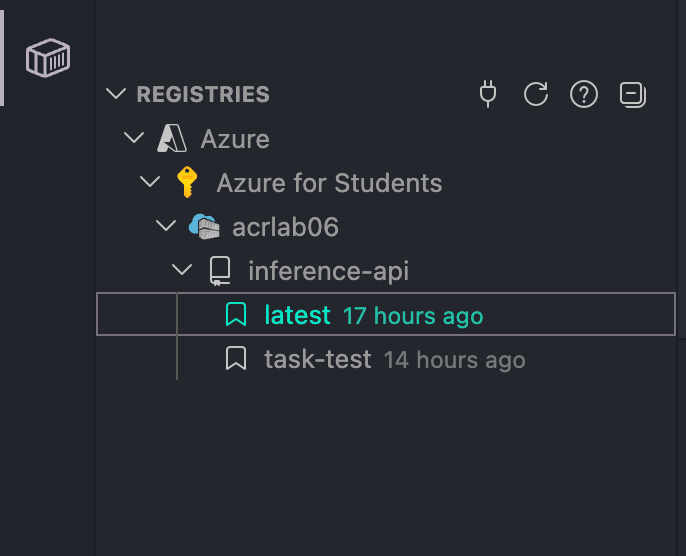
- Under REGISTRIES -> Azure ->
<Subscription>-><Your ACR>(e.g.acrlab06), locate your image repository. - Right-click the tag (e.g.
latest) and select Push.
Step 4: Deploy Image to Azure App Service
- Right-click the pushed image tag in the REGISTRIES explorer and select Deploy Image to Azure App Service.
- Follow the interactive prompts:
- Select your Subscription (
Azure for Students). - Enter a globally unique Web App name (e.g.,
inference-api-test). - Select Resource Group and App Service Plan (e.g.
B1tier on Linux).
- Select your Subscription (
Step 5: Verify in Azure Resources Extension
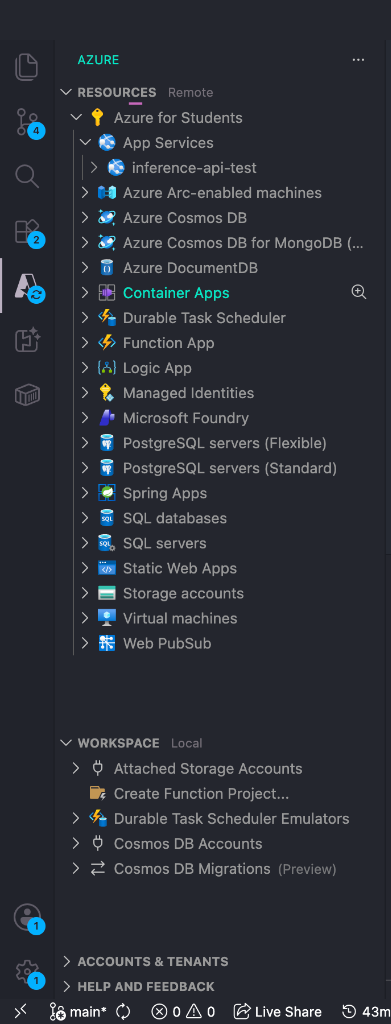
Open the Azure extension tab in VS Code. Under RESOURCES -> App Services, verify that inference-api-test is running.
Option B: Deploying via Azure CLI with Managed Identity (Production Standard)
This section demonstrates Microsoft's production best practice: configuring a System-Assigned Managed Identity with the AcrPull role to authenticate to ACR without registry admin passwords.
Step 1: Register Microsoft.Web Provider (Debugging Step)
Symptom: Creating App Service Plan fails with MissingSubscriptionRegistration.
Why: First-time resource creation in a subscription requires registering the resource provider.
Fix:
az provider register -n Microsoft.Web

# Verify registration status
az provider show -n Microsoft.Web --query "registrationState"
If a brand new Azure resource fails with a "Registration" error, resolve it by executing az provider register -n <Namespace.Name>.
Step 2: Create Linux App Service Plan
Why: Provisions the underlying Linux server farm (B1 tier) to host your containers.
az appservice plan create -n inference-plan -g container-learning --is-linux --sku B1Step 3: Provision Web App & Specify Image
Why: Creates the Web App for Containers pointing to your ACR image.
az webapp create \
  -g container-learning \
  -p inference-plan \
  -n inference-api-test \
  --container-image-name acrlab06.azurecr.io/inference-api:latest
Step 4: Enable System-Assigned Managed Identity on Web App
Why: Generates an Entra ID Service Principal tied directly to the Web App's lifecycle.
az webapp identity assign \
  -g container-learning \
  -n inference-api-test
Step 5: Assign AcrPull Role to Managed Identity
Why: Grants least-privilege read permissions so the Web App identity can pull images from your private ACR without admin credentials.
# Get Web App Principal ID
PRINCIPAL_ID=$(az webapp identity show \
  -g container-learning \
  -n inference-api-test \
  --query principalId \
  -o tsv)

# Get ACR Scope Resource ID
ACR_ID=$(az acr show \
  -g container-learning \
  -n acrlab06 \
  --query id \
  -o tsv)

# Assign AcrPull Role
az role assignment create \
  --assignee $PRINCIPAL_ID \
  --scope $ACR_ID \
  --role AcrPull
Step 6: Configure App Service to Use Managed Identity for ACR
Why: Instructs App Service to authenticate against ACR using its Managed Identity token instead of hardcoded passwords.
az webapp config set \
  -g container-learning \
  -n inference-api-test \
  --acr-use-identity true \
  --acr-identity [system]

az webapp config container set \
  -g container-learning \
  -n inference-api-test \
  --container-image-name acrlab06.azurecr.io/inference-api:latest \
  --container-registry-url https://acrlab06.azurecr.io
Overview & Architecture
Overview of deploying custom Linux containers to Azure App Service, image registry sources, ACR authentication options, and container lifecycle events.
02 - Runtime & App Settings
Learn how to configure startup commands, port routing, persistent SMB storage, always-on, automated health checks, environment variables, connection strings, and Key Vault references.